YouTube thumbnail size matters more than most creators realize. The wrong dimensions can make your thumbnail look blurry, get awkwardly cropped, or fail to upload entirely. Since thumbnails are the single biggest factor in whether someone clicks your video, getting the size right is non-negotiable.
In this guide, we'll cover the exact YouTube thumbnail dimensions you need, all five resolution tiers YouTube generates, the safe zones for text placement, and how to check the size of any existing thumbnail using our free YouTube thumbnail downloader.
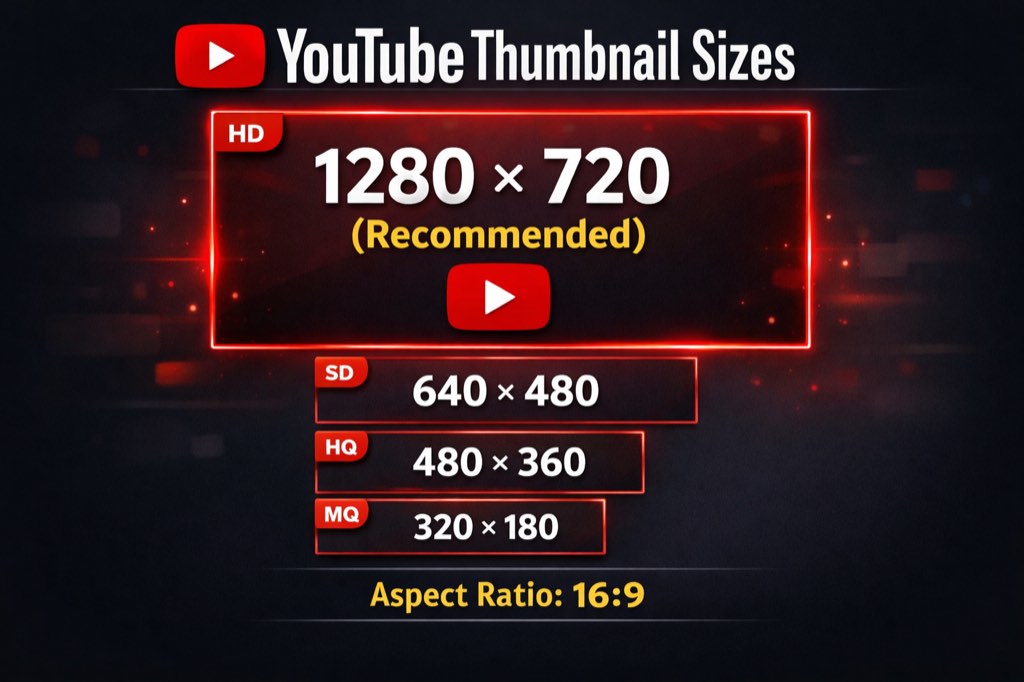
What Is the Recommended YouTube Thumbnail Size?
The recommended YouTube thumbnail size is 1280 × 720 pixels with a 16:9 aspect ratio. This has been YouTube's standard for years and remains the best choice in 2026.
Here are the full specs:
| Spec | Requirement |
|---|---|
| Resolution | 1280 × 720 pixels |
| Minimum width | 640 pixels |
| Aspect ratio | 16:9 |
| Max file size | 2 MB (50 MB rolling out for TV) |
| Accepted formats | JPG, PNG, GIF, BMP |
| DPI | 72 (DPI doesn't matter for screens) |
The 1280×720 resolution gives you enough detail to look sharp on desktop monitors and smart TVs while keeping the file size manageable. YouTube will scale it down automatically for mobile and sidebar views.
All 5 YouTube Thumbnail Resolutions
When you upload a video, YouTube automatically generates thumbnails in five different resolutions. Understanding these is useful if you're downloading thumbnails for research or checking how your own thumbnail looks at different sizes.
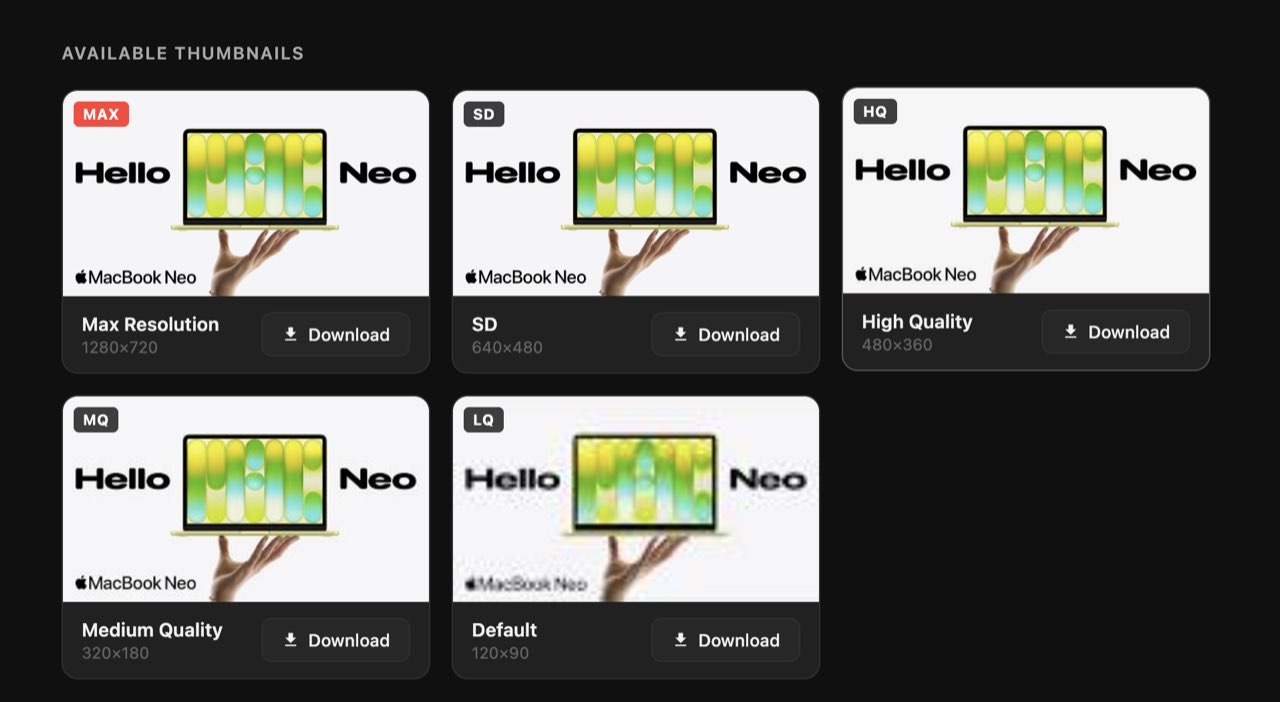
All five thumbnail resolutions shown in the getyoutubethumbnaildownloader tool
Maximum Resolution (1280×720)
This is the highest quality thumbnail YouTube stores. It's the one displayed on desktop home feeds and when a video is embedded on external websites. Not all videos have this tier — it requires the uploader to have set a custom thumbnail at HD quality.
Best for: Blog embeds, design research, presentations, and competitive analysis.
Standard Definition (640×480)
A reliable fallback when the maximum resolution isn't available. The 4:3 aspect ratio means it'll have slight black bars in a 16:9 context, but the quality is still solid.
Best for: Quick reference, social media sharing.
High Quality (480×360)
The original standard YouTube thumbnail size from the platform's early days. Still uses a 4:3 aspect ratio. You'll see this resolution in older video gallery grids and some mobile previews.
Best for: Content management systems, smaller widget previews.
Medium Quality (320×180)
A compact 16:9 image that's ideal for mobile displays and situations where bandwidth matters. This is close to the size thumbnails actually appear in YouTube's mobile search results.
Best for: Mobile app displays, small widget previews, speed-optimized pages.
Default / Low Quality (120×90)
The smallest tier, in 4:3 format. This is essentially a placeholder — useful for image sitemaps, content catalogs, or anywhere you just need a tiny visual reference.
Best for: Sitemaps, automated catalogs, small placeholders.
Quick Comparison Table
| Resolution | Dimensions | Aspect Ratio | Use Case |
|---|---|---|---|
| Maximum | 1280×720 | 16:9 | Embeds, research, design |
| Standard | 640×480 | 4:3 | Social sharing, fallback |
| High | 480×360 | 4:3 | Gallery grids, older embeds |
| Medium | 320×180 | 16:9 | Mobile, bandwidth-sensitive |
| Default | 120×90 | 4:3 | Sitemaps, placeholders |
Want to see all five resolutions for any YouTube video? Use our YouTube thumbnail downloader — paste a video URL and instantly preview every available size.
Safe Zones: Where to Place Text and Key Elements
Not every part of your thumbnail is visible in every context. YouTube overlays timestamps, badges, and other UI elements on top of your image depending on where it's displayed.
Desktop safe zone: Keep important content within the center 1100×620 pixels. This avoids anything getting cut off in search results or suggested video sidebars.
Mobile safe zone: Tighten it further to 960×540 pixels. Mobile screens are small, and YouTube's UI takes up more proportional space.
Bottom-right corner: Always avoid placing text here. YouTube displays the video duration timestamp (e.g., "12:34") in this corner, and it will cover whatever you put there.
Bottom-left corner: On some surfaces, YouTube shows chapter markers or progress indicators here. Keep it clear when possible.
JPG vs PNG: Which Format Should You Use?
JPG is the better choice for most thumbnails. It handles photographs and complex images well, produces smaller file sizes, and loads faster. If your thumbnail is a photo with text overlay — which most YouTube thumbnails are — JPG at 80–90% quality is the way to go.
PNG is better for graphics-heavy thumbnails with text, logos, or flat illustrations that need crisp edges. The downside is larger file sizes. If your PNG exceeds 2 MB, you'll need to compress it before uploading.
GIF technically works, but YouTube only displays the first frame. There's almost no reason to use this format for thumbnails.
How to Check Any YouTube Thumbnail's Size
Curious what resolution a competitor's thumbnail is using, or want to download your own for a backup? You can check any YouTube thumbnail instantly:
- Go to our free YouTube thumbnail downloader
- Paste the YouTube video URL
- The tool will show you every available resolution with download buttons
- Click on any resolution to preview or download it
This is especially useful for competitive thumbnail research — download the top-performing thumbnails in your niche, study what's working, and use those insights to improve your own designs.
YouTube Shorts Thumbnail Size
YouTube Shorts use a 9:16 vertical format (1080×1920 pixels) for the video itself, but custom thumbnails still follow the standard 1280×720 (16:9) dimensions. YouTube displays them correctly in search results and suggested videos.
If you're creating a custom thumbnail for a Shorts video, design it at 1280×720 just like a regular video. Be aware that on some surfaces (Home, Explore, Subscriptions), YouTube may auto-generate a vertical 4:5 crop from your video instead of using your custom 16:9 thumbnail.
Common Thumbnail Size Mistakes
Uploading too small: Anything below 640 pixels wide will look blurry on most screens. Always use the full 1280×720.
Wrong aspect ratio: If you upload a 4:3 or 1:1 image, YouTube adds black bars to fill the 16:9 space. This looks unprofessional and wastes valuable visual real estate.
Exceeding 2 MB: Your upload will fail. Compress the image or reduce the JPG quality to bring it under the limit.
Ignoring mobile: Over 70% of YouTube watch time happens on mobile. If your text is too small to read at 320×180, it needs to be bigger.
Text in the bottom-right: The duration timestamp will cover it. Every time.