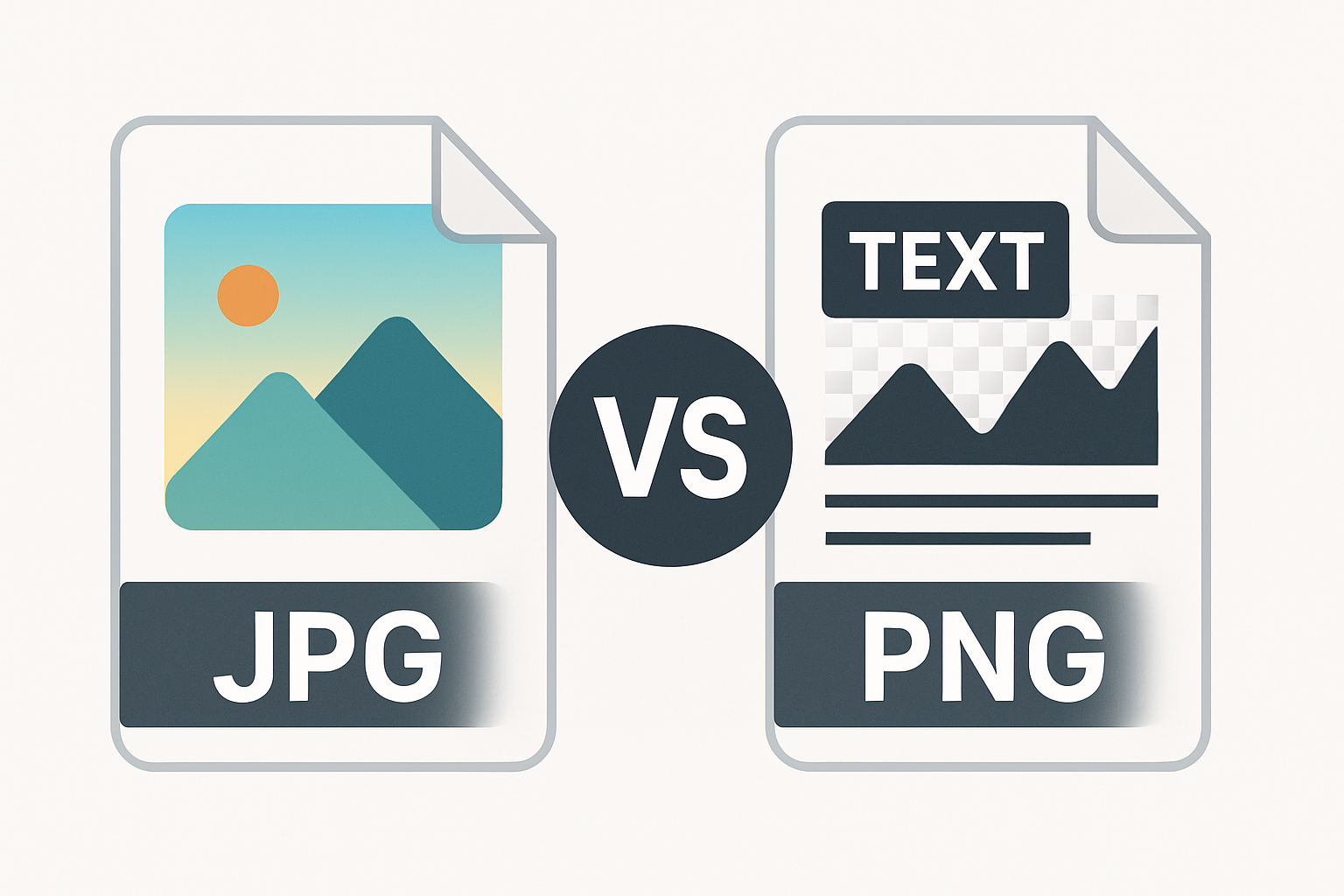
The youtube thumbnail jpg or png debate is one of the most common questions from creators learning thumbnail design. Both formats are accepted by YouTube. Both can look excellent. But they perform very differently depending on what your thumbnail contains. Here’s how to choose the right one every time.
Key Takeaways
- JPG is better for thumbnails with photos, faces, and complex gradients
- PNG is better for thumbnails with flat colors, sharp text, logos, or transparency
- For most thumbnails (photo-based with text overlay), JPG at 80-85% quality is the practical best choice
- PNG thumbnails tend to be larger in file size — often close to or over YouTube’s 2MB limit
- The best format youtube thumbnail decision comes down to your specific design content
How Each Format Works
JPG (JPEG): JPG uses lossy compression — it discards some image data to reduce file size. The algorithm is optimized for natural, continuous-tone images like photographs. Smooth gradients, skin tones, blurred backgrounds, and complex scenes compress efficiently. Sharp lines and high-contrast edges can develop “artifacts” (blocky compression patterns) if over-compressed.
PNG: PNG uses lossless compression — no image data is ever discarded. Every pixel is preserved exactly. This makes PNG ideal for graphics with sharp edges, flat areas of solid color, text, logos, and images that need a transparent background. The trade-off is larger file sizes.
Quality Comparison: What Each Format Handles Best
Photos and Faces
Winner: JPG
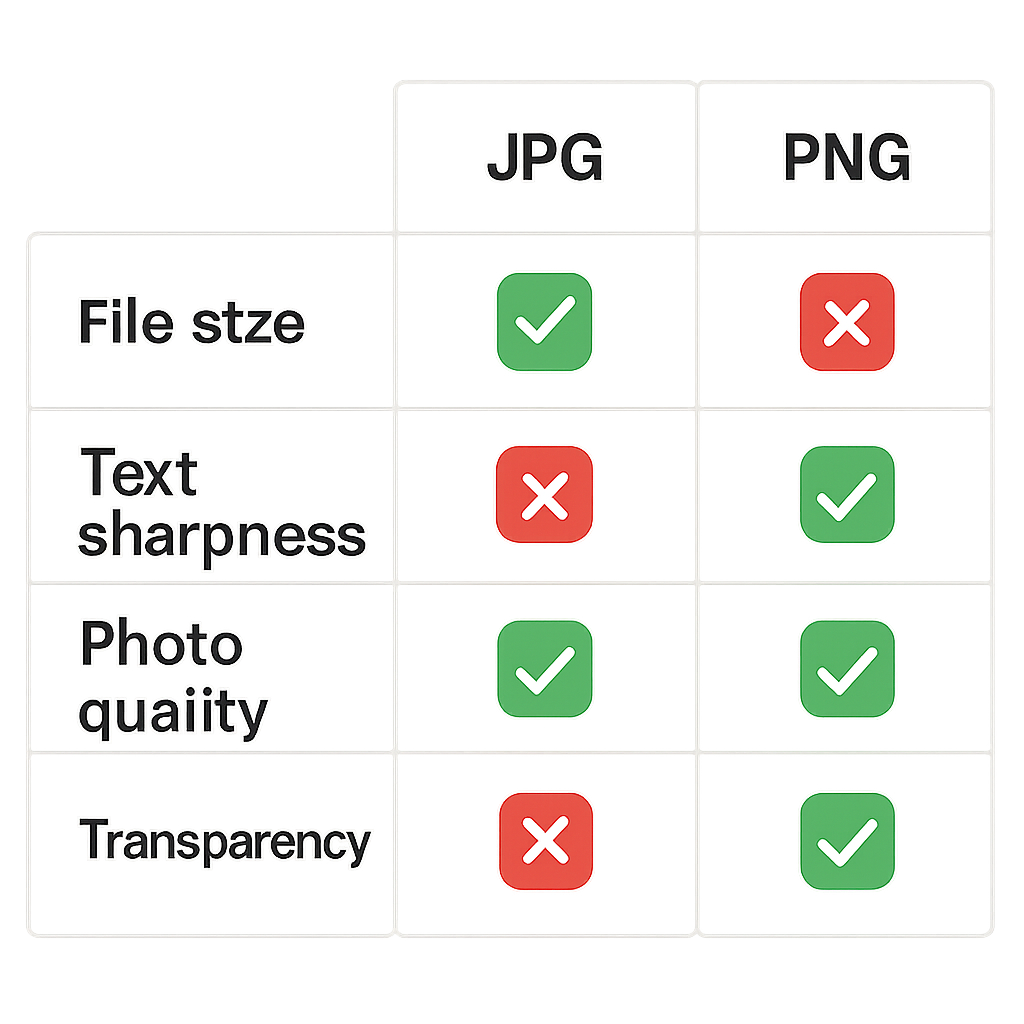
A thumbnail with a person’s face, hair detail, and a gradient background is a perfect candidate for JPEG. At 80% quality, a 1280×720 JPEG will look virtually identical to a PNG of the same image — while being 3-5x smaller in file size. When YouTube recompresses your image for display, both formats reach a similar final quality, but JPG gets there at less cost.
Text Overlays
Winner: PNG
Sharp text edges are where JPG falls apart. When JPEG compresses a thumbnail with white text on a dark background, it creates color fringing around letters — subtle but visible on close inspection. PNG preserves those sharp text edges perfectly.
However: if you’re saving a design with text as JPG at 85%+ quality, the artifacts are minor and often invisible at YouTube’s display sizes. Many creators use JPG with text overlays without issue.
Flat Color Backgrounds
Winner: PNG
Solid color backgrounds (a flat red, a flat blue, etc.) don’t compress well with JPEG. You may see color banding or subtle mottling where the background should be uniform. PNG handles solid colors with zero artifacts.
Transparent Backgrounds
Winner: PNG (only option)
JPG doesn’t support transparency. If your thumbnail design has a transparent background (for compositing over another image, or for mockups), you must use PNG. YouTube doesn’t use transparency in thumbnails — when uploaded, any transparent areas become white — but for workflow purposes, PNG is the only choice.
png vs jpg thumbnail: File Size Reality Check
At 1280×720 pixels:
| Format & Settings | Typical File Size | Under 2MB? |
|---|---|---|
| JPEG at 60% quality | 80-150KB | Yes |
| JPEG at 80% quality | 150-350KB | Yes |
| JPEG at 95% quality | 400-700KB | Yes |
| PNG (24-bit, photo) | 700KB-2.5MB | Sometimes not |
| PNG (24-bit, graphic) | 200KB-900KB | Yes |
| WebP at 80% quality | 80-200KB | Yes |
For most photographic thumbnails, JPG at 80% keeps you comfortably under 2MB. PNG thumbnails with complex designs can push over the limit, requiring compression. For more on managing file size, see YouTube Thumbnail File Size Limit: How to Stay Under 2MB.
What YouTube Does to Your Thumbnail After Upload
Here’s the key insight: YouTube recompresses your uploaded thumbnail when it serves it to viewers. Regardless of whether you upload a PNG or JPG, what viewers see is YouTube’s processed version. The platform converts thumbnails to WebP for modern browsers.
This means:
- The absolute perfect quality you upload may not be perfectly preserved
- The difference between a JPG and PNG thumbnail, after YouTube’s processing, is minimal for most designs
- What matters most is that you upload a clean, high-quality source file — either format works as the source
thumbnail image format: The Practical Recommendation
For a typical YouTube thumbnail — a face or scene from the video with text overlay on a dark or blurred background:
- Create your design in PNG (better for working with text and layers in design tools)
- Export as JPEG at 80-85% before uploading (smaller file, still excellent quality)
This hybrid approach gives you lossless editing quality during design and efficient file size for upload.
If your thumbnail is entirely graphic (flat colors, no photos), stay with PNG for the sharper edges.
When to Use WebP
YouTube now accepts WebP format in 2026. WebP produces smaller files than JPG at equivalent quality (typically 25-35% smaller). If your design tool supports WebP export (Figma, Photoshop with a plugin, Squoosh), it’s worth considering. Most creators stick with JPG or PNG out of habit, but WebP is a technically superior option.
Conclusion
For most YouTube thumbnails, JPG at 80-85% quality is the best practical choice. It handles photos and complex imagery with excellent quality at small file sizes. Use PNG when your design has sharp-edged text, flat colors, or transparency needs. The YouTube Thumbnail Downloader lets you see what format and quality level creators are using by downloading and checking file details on any video’s thumbnail.
For complete size and dimension guidance, see the YouTube Thumbnail Size Guide.