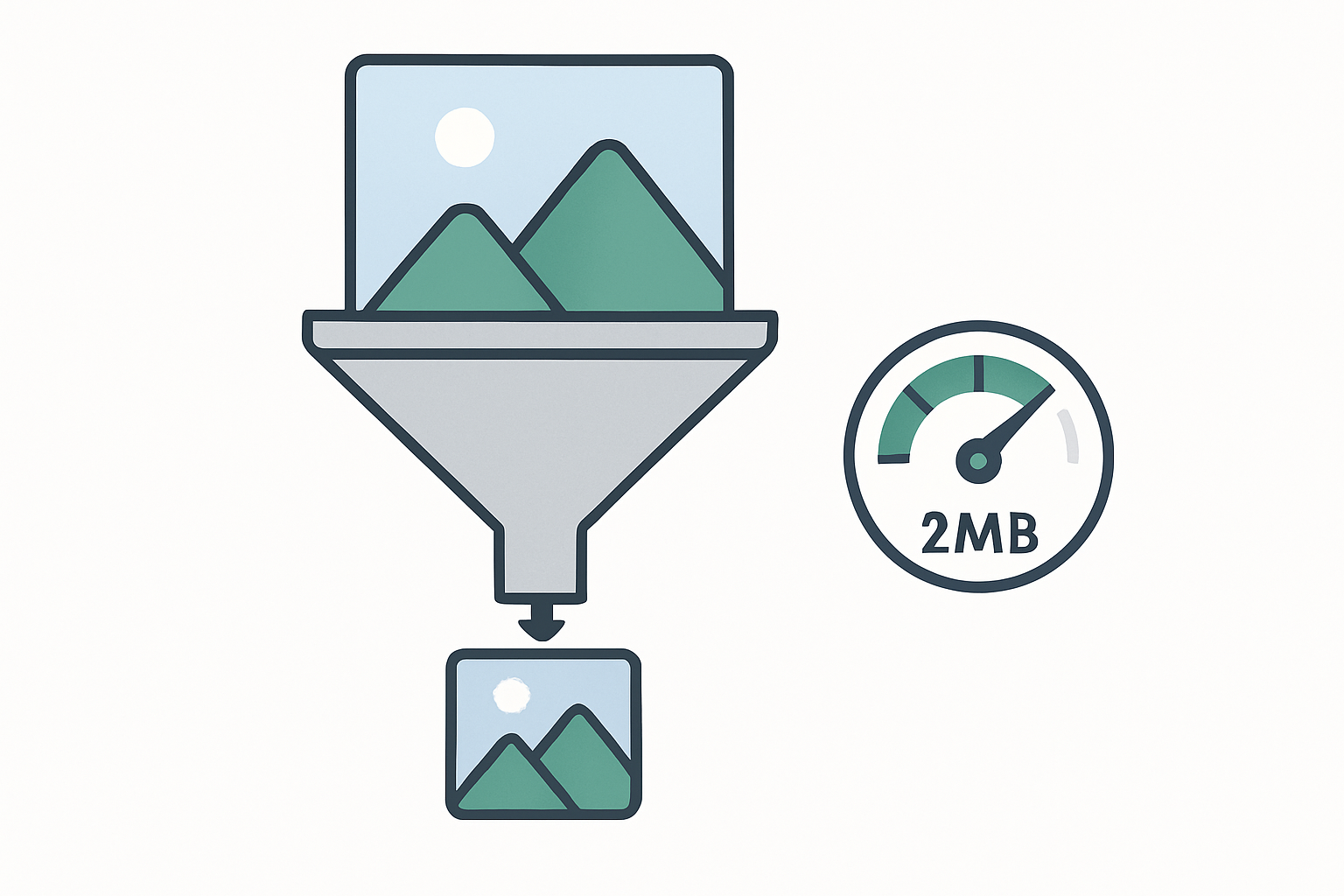
YouTube enforces a strict 2MB file size limit on thumbnails, documented in the official YouTube Help Center. Upload a file over this limit and YouTube will reject it with an error, leaving your video stuck with an auto-generated thumbnail. The good news: staying under 2MB while keeping your thumbnail looking sharp is straightforward once you know the right approach.
Key Takeaways
- YouTube’s youtube thumbnail file size maximum is 2MB (2,097,152 bytes)
- A 1280×720 JPEG at 80% quality is typically 100-400KB — well under the limit
- PNG files are the most common source of oversized thumbnails
- Converting a large PNG to JPEG is the fastest way to reduce thumbnail too large youtube errors
- Free tools like Squoosh, TinyPNG, and Canva’s export can compress thumbnails without visible quality loss
What Happens When Your Thumbnail Is Too Large
When you try to upload a thumbnail larger than 2MB in YouTube Studio:
- YouTube displays an error: “Thumbnail too large” or similar
- The upload is rejected entirely
- Your video stays with the default auto-generated thumbnail (or whatever was previously set)
This is not a soft limit — YouTube does not reduce the file size for you. You must fix it before uploading.
Understanding the 2MB Limit in Practice
The thumbnail 2mb limit is rarely a problem with standard JPEGs, but it becomes an issue with:
- PNG files with complex designs: A 1280×720 PNG with multiple layers, gradients, and text can easily hit 2-4MB
- Uncompressed exports from design tools: Canva, Figma, or Photoshop on default settings may export at higher quality than necessary
- Unnecessarily large canvases: Designing at 1920×1080 instead of 1280×720 produces larger files
- TIFF files: Not accepted by YouTube, but sometimes created by mistake
Format-by-Format File Size Expectations at 1280×720
| Format | Typical File Size | Notes |
|---|---|---|
| JPEG at 80% quality | 100-300KB | Almost always under 2MB |
| JPEG at 100% quality | 400-800KB | Still under 2MB, but larger than needed |
| PNG (24-bit, full color) | 500KB-2MB+ | Can exceed limit |
| PNG (8-bit, limited colors) | 100-400KB | Usually safe |
| WebP at 80% quality | 80-200KB | Most efficient; accepted by YouTube |
| GIF | Variable; often large for photos | Not recommended for photo thumbnails |
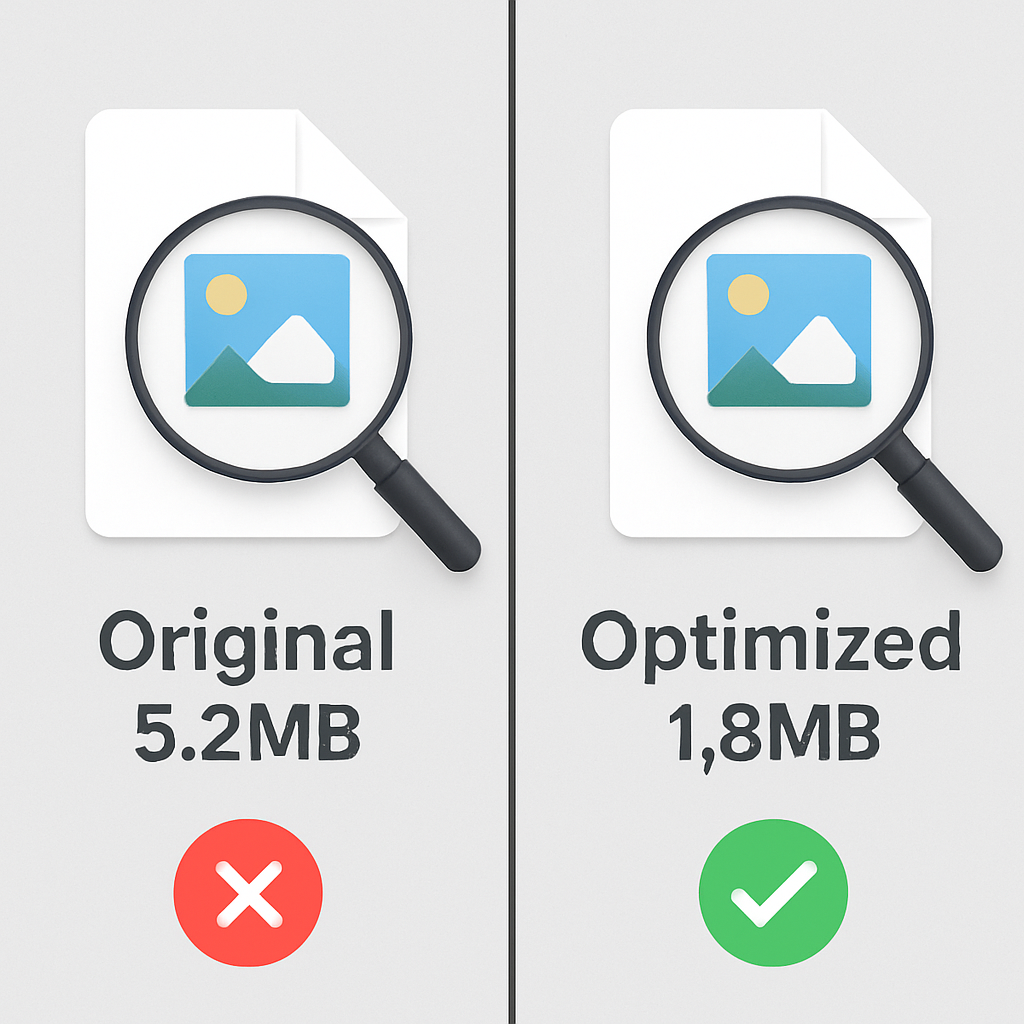
How to Compress a YouTube Thumbnail Under 2MB
Method 1: Export as JPEG (Simplest Fix)
If your thumbnail is a PNG over 2MB, simply re-export it as a JPEG:
- In Photoshop: File > Export > Export As > JPEG, Quality 80
- In Canva: Download > JPG
- In GIMP: File > Export As > .jpg, adjust quality slider to 80-85
- In Figma: Export > JPG at 1x scale
A well-designed 1280×720 thumbnail saved as JPEG at 80% quality will look visually identical to the PNG version in YouTube’s display at web resolution.
Method 2: Use Squoosh (Free Browser Tool)
Squoosh is Google’s free image compression tool and the most precise option:
- Open squoosh.app
- Drag and drop your thumbnail
- Set format to “MozJPEG” and quality to 75-80
- See the file size update in real-time
- Click download when under 2MB
Squoosh also supports WebP output, which YouTube accepts and produces smaller files than JPEG at equivalent quality.
Method 3: TinyPNG / TinyJPG (Quick Compression)
TinyPNG.com reduces PNG and JPEG file sizes by 60-80% with minimal visible quality loss:
- Upload your thumbnail
- Download the compressed version
- Check the file size — it’s almost always under 2MB after compression
Method 4: Reduce Canvas Size
If you designed at 1920×1080 instead of the recommended 1280×720, resize down:
- A 1920×1080 JPEG at 80% quality can be 500KB-1.2MB
- The same design at 1280×720 would be 200-500KB
- Quality at YouTube’s display sizes is identical
compress youtube thumbnail: Quality vs Size Trade-offs
There’s a threshold below which JPEG compression creates visible artifacts (blocky patterns, color banding). For YouTube thumbnails at 1280×720:
- Quality 85-95: Almost no visible compression, files may be larger but still usually under 2MB
- Quality 75-85: The sweet spot — excellent visual quality at small file sizes
- Quality 60-75: Noticeable artifacts on faces and gradients — avoid this range
- Quality below 60: Clear quality degradation visible on YouTube
For JPG vs PNG Decisions
The choice of format affects both quality and file size. JPG is better for photographs and complex imagery; PNG is better for flat designs with text. For a complete comparison, see JPG vs PNG for YouTube Thumbnails.
Checking Your File Size Before Upload
Before uploading to YouTube Studio:
- Mac: Right-click the file > Get Info — size shown in the General section
- Windows: Right-click the file > Properties — size shown on the General tab
- Chrome: Drag the file into a browser tab — Chrome shows image dimensions and file path
If your file is over 2MB, compress it before attempting to upload.
Conclusion
The 2MB YouTube thumbnail file size limit is easy to meet. Export thumbnails as JPEG at 80% quality from any design tool, keep your canvas at 1280×720, and run it through Squoosh or TinyPNG if needed. For more on optimizing image delivery, the web.dev image performance guide is a great reference. The result is a sharp, professional thumbnail well within YouTube’s limits.
For related spec guidance, see the YouTube Thumbnail Size Guide for a full reference on dimensions and format requirements.