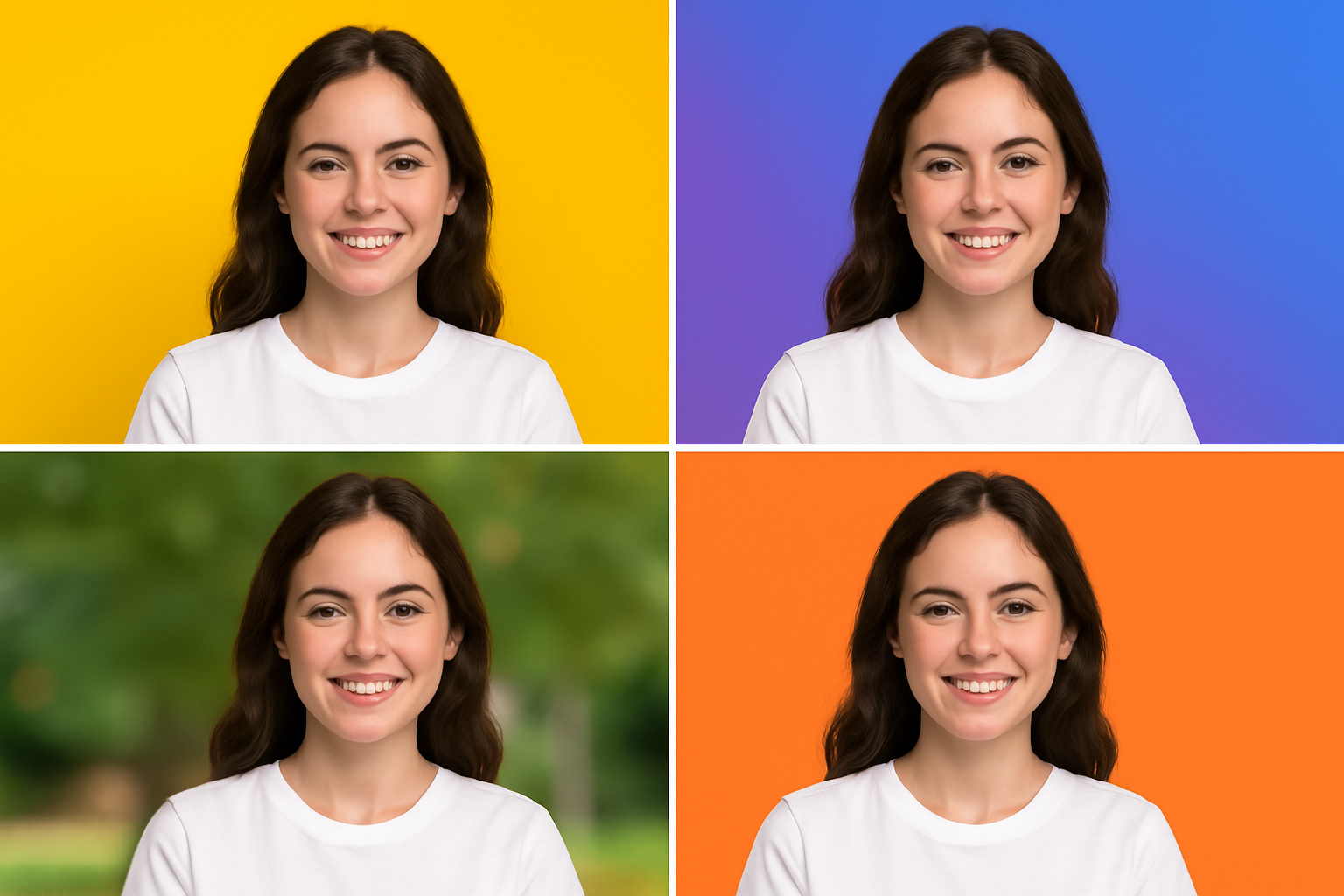
The background in your YouTube thumbnail does more work than most creators realize. A well-chosen youtube thumbnail background makes your subject pop, conveys the right emotion, and keeps the design clean at thumbnail display sizes. Here are the most effective background approaches in 2026, including solid colors, gradients, blur techniques, and background removal tricks.
Key Takeaways
- Solid color backgrounds with high contrast to the subject get the highest visibility in competitive feeds
- Gradient backgrounds add visual depth without the busyness of a real photo background
- Background removal tools (free in 2026) make it easy to place subjects on any background
- Blurred photo backgrounds are the most natural-looking option when you want to reference a real scene
- thumbnail colors should be chosen to stand out against YouTube’s predominantly white feed
Why Background Choice Matters
YouTube thumbnails are displayed in a mostly white, gray, or neutral-tone interface, and YouTube’s own thumbnail guidance reinforces that thumbnails are competing for attention in a crowded feed. To stand out:
- Thumbnails with bright, saturated backgrounds are more visible
- Thumbnails with dark backgrounds create strong contrast against YouTube’s light UI
- Backgrounds with too much detail compete with the subject and reduce legibility
The background is not decorative filler — it’s an active design element.
Background Type 1: Solid Colors
Solid color backgrounds are the fastest to create and among the most effective.
Best solid colors for YouTube thumbnails:
- Bright yellow (#FFD700, #FFC200): Highest visibility, warm, energetic — used heavily in entertainment and educational content
- Electric blue (#0066CC, #00AAFF): Professional, trustworthy — popular in tech and business
- Pure red (#CC0000, #FF0000): Urgency, excitement — gaming, news, reaction content
- Dark charcoal (#222222, #1A1A1A): Sophisticated, lets bright elements pop — cinematic and documentary content
- Deep green (#007744): Finance, nature, health — niche but effective
How to use solid colors effectively:
- Keep the main subject (face, product) in the foreground
- Use the solid color to fill the background areas
- Match the background color to the emotional tone of the video
Background Type 2: Gradient Backgrounds
Gradients add visual interest without the complexity of a real background. The most popular approaches:
Radial gradient: A bright center fading to darker edges naturally draws the eye to the subject in the center. Common in beauty, tech review, and product thumbnails.
Linear gradient: Left-to-right or diagonal gradients work well when the composition splits the thumbnail into two areas (subject left, text right). The gradient helps visually separate the zones.
Two-color gradient: Combining two complementary or contrasting colors (e.g., orange to dark red, blue to purple) creates visual depth that flat solid colors don’t have.
Tools like Canva, Adobe Express, and Figma all offer gradient background options for free.
Background Type 3: Blurred Photo/Scene
Using a blurred version of the actual video scene as the background gives context while keeping the composition clean.
How to create a blurred background:
- Take a screenshot or still frame from your video
- Apply a Gaussian blur at 20-40px (in Photoshop, GIMP, or Canva)
- Place your subject (face, product) as a separate layer in the foreground
- The blurred scene gives spatial context; the sharp foreground pops
This technique is common in travel, cooking, tutorial, and lifestyle content where the setting matters to the viewer.
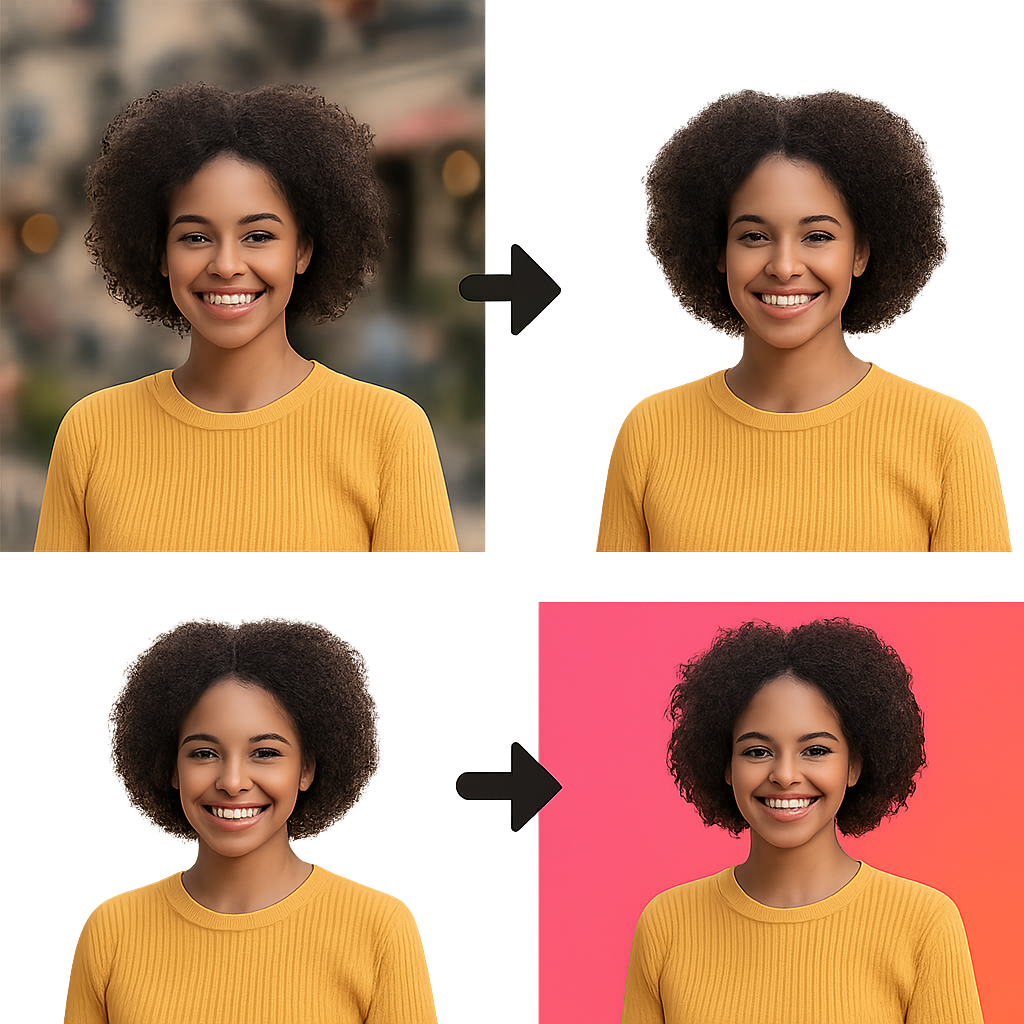
Background Type 4: Remove Background and Replace
Background removal has become extremely easy in 2026 with free AI tools:
Free background removal tools:
- remove.bg: Upload a photo, get the subject extracted in seconds. Free for web use.
- Canva Background Remover: Built into Canva’s free and Pro plans — one click for most photos.
- Adobe Express Remove Background: Free with an Adobe account, excellent on complex hair.
- Photoshop’s Remove Background / Select Subject: The most powerful option, best for complex edges.
Once the background is removed, replace it with:
- A solid color that fits your brand
- A gradient
- A custom illustrated background
- A completely different real photo or scene
This technique is used by nearly every high-production YouTube channel to create consistent, polished thumbnail backgrounds regardless of where the original photo was taken.
remove background youtube thumbnail: Step-by-Step
Using Canva (free):
- Upload your photo to Canva.
- Select the image and click “Edit image” in the toolbar.
- Click “BG Remover” — Canva processes and removes the background.
- Add your new background color, gradient, or image behind the subject.
- Download at 1280×720.
Using remove.bg:
- Go to remove.bg and upload your image.
- The tool auto-removes the background.
- Download the PNG with transparent background.
- Open in any design tool and add your chosen background behind it.
thumbnail background ideas: Color Psychology Reference
| Color | Psychological Effect | Best For |
|---|---|---|
| Yellow | Energy, optimism, attention | Entertainment, tutorials, how-to |
| Red | Urgency, excitement, passion | Gaming, news, drama, sports |
| Blue | Trust, calm, professionalism | Tech, finance, education |
| Green | Growth, health, nature | Finance, fitness, wellness |
| Orange | Warmth, creativity, enthusiasm | Food, travel, lifestyle |
| Black | Luxury, drama, sophistication | Cinematic, fashion, premium |
| Purple | Creativity, mystery | Beauty, gaming, creative topics |
What Background to Avoid
- Busy, unmodified real-world backgrounds: Cluttered scenes distract from your subject and reduce text readability
- White or very light backgrounds: These disappear into YouTube’s white UI — low contrast
- Neon-on-neon combinations: Two equally saturated colors fight each other
- Dark text over dark background or light text over light background: Always test your actual thumbnail at thumbnail size
Conclusion
The best youtube thumbnail background approach depends on your content type and brand. For maximum visibility: bold solid colors or gradients that contrast with YouTube’s light interface. For natural-looking thumbnails: blurred scene backgrounds with the subject in sharp focus. For maximum design flexibility: background removal + custom replacement.
To see how professional creators handle background design in their thumbnails, download examples using the YouTube Thumbnail Downloader and compare approaches in your niche.
For the broader thumbnail design strategy, see How to Make YouTube Thumbnails That Get Clicks.