If you can’t change your YouTube Shorts thumbnail, you’re not alone — this is one of the most searched frustrations for Shorts creators in 2026. The issue has several causes, and the fix depends on which one applies to you. This guide covers every known reason why the shorts thumbnail not working problem occurs and the exact steps to resolve each one.
Key Takeaways
- The most common cause: uploading from the YouTube mobile app instead of YouTube Studio
- Custom thumbnails for Shorts require phone verification on your YouTube account
- The “Upload thumbnail” button may be missing for accounts under 1,000 subscribers in some regions
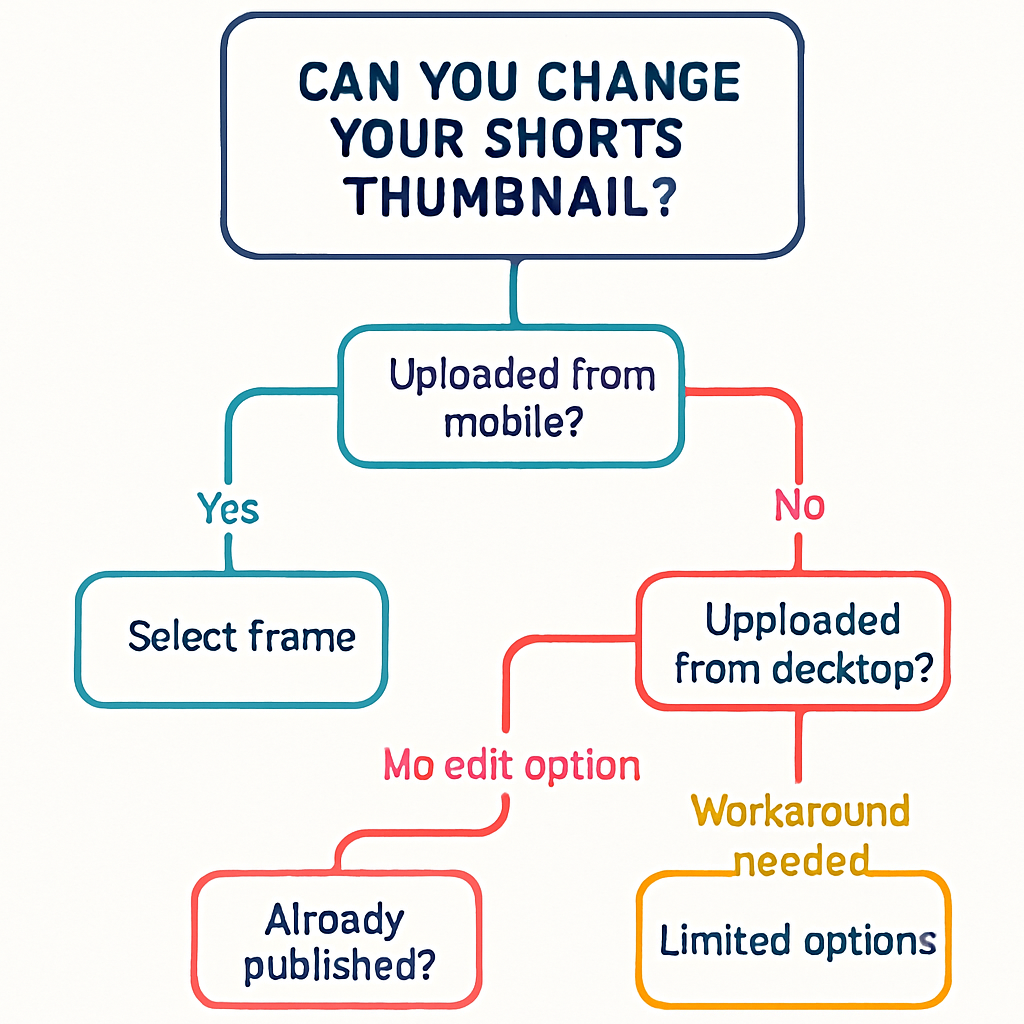
- Using YouTube Studio on desktop (not mobile) is the most reliable fix
- youtube shorts thumbnail error messages often disappear after a browser refresh or cache clear
Why YouTube Makes Shorts Thumbnails Difficult
YouTube was slow to enable custom thumbnails for Shorts because Shorts initially used auto-generated frame images. The feature rolled out gradually from 2023 through 2025, and by 2026 most accounts have access — but the rollout wasn’t uniform, and some edge cases remain.
Additionally, the interface for changing a Shorts thumbnail is different from changing a regular video thumbnail. The option is buried in YouTube Studio and not always visible from the main YouTube app.
Reason #1: You’re Using the Wrong App or Browser
Problem: The regular YouTube mobile app has a limited video editing interface that may not show the custom thumbnail upload option.
Fix:
- Open a browser (Chrome, Safari, Edge) on your phone or computer.
- Go to studio.youtube.com.
- Sign in to your YouTube account.
- Go to Content and find your Short.
- Click the pencil icon to edit.
- Look for the Thumbnail section — you should see an Upload thumbnail option here.
Best practice: Always use YouTube Studio on desktop (not the YouTube app) for thumbnail changes.
Reason #2: Your Account Isn’t Verified
Problem: YouTube requires phone number verification before allowing custom thumbnails. Unverified accounts can’t upload custom thumbnails on any video, including Shorts.
Fix:
- Go to youtube.com/verify.
- Enter your phone number.
- Enter the verification code sent by SMS or call.
- Once verified, the thumbnail upload option should appear within a few minutes.
Reason #3: The Short Was Just Uploaded
Problem: YouTube processes videos after upload, and the thumbnail editing options may not appear immediately.
Fix: Wait 15-60 minutes after uploading your Short before trying to change the thumbnail. The video must finish processing before the thumbnail can be changed.
Reason #4: Custom Thumbnails Are Restricted on Your Channel
Problem: Some YouTube channels don’t have access to custom thumbnails due to policy violations, monetization status, or account standing.
Check:
- Go to YouTube Studio > Content.
- Click on any video (not a Short).
- In the Details panel, check if the Thumbnail section shows an Upload thumbnail button.
- If even regular videos don’t have this option, your account may have custom thumbnail access restricted.
Fix: Check YouTube Studio > Settings > Channel > Feature eligibility to see if custom thumbnails are listed as available or restricted. For the full list of features that require account standing in good shape, see YouTube’s feature eligibility documentation.
Reason #5: Browser or App Cache Issue
Problem: The YouTube Studio interface sometimes shows stale data or glitches due to cached content.
Fix:
- Clear your browser cache: In Chrome, go to Settings > Privacy and Security > Clear browsing data.
- Try in an incognito/private window.
- Try a different browser.
- On mobile: clear the YouTube Studio app cache (Settings > Apps > YouTube Studio > Clear cache).
Reason #6: Using YouTube Creator Studio Classic
Problem: The old YouTube Creator Studio (Classic) interface is no longer maintained and may not show thumbnail options for Shorts.
Fix: Switch to the new YouTube Studio at studio.youtube.com. The classic Studio has been deprecated; the new Studio is the only supported interface.
Reason #7: The Short Is Under Review
Problem: If your Short is currently flagged for review or has a content issue, editing options (including thumbnails) may be temporarily locked.
Check: In YouTube Studio, look for any yellow or red notices on the video. If there’s a “Video has issues” indicator, resolve that first before trying to change the thumbnail.
Fix Shorts Thumbnail: Step-by-Step Summary
- Try YouTube Studio on desktop — go to studio.youtube.com, Content > edit Short > Thumbnail section.
- Verify your account at youtube.com/verify if you haven’t already.
- Wait if recently uploaded — allow 30-60 minutes post-upload.
- Clear cache and try again in an incognito window.
- Check account standing in YouTube Studio > Settings > Channel > Feature eligibility.
If none of these work, check the YouTube Help Community for your specific issue — occasional platform-wide bugs can also prevent thumbnail changes temporarily.
What to Do If You Still Can’t Change It
If the thumbnail option is truly unavailable after all troubleshooting:
- Pick the best auto-frame: YouTube offers several auto-generated frames. Choose the most visually appealing one.
- Re-upload the Short with a better first frame if the auto-selections are all poor.
- Set a strong first frame during shooting: Make sure the very first frame or the highest-quality frame of your Short is something you’d be happy with as a thumbnail.
For the complete guide on adding custom thumbnails to Shorts (including the upload process when it works), see How to Add a Custom Thumbnail to YouTube Shorts.
For size specifications when uploading a custom Shorts thumbnail, see YouTube Shorts Thumbnail Size and Specs.
Conclusion
The most reliable fix for the youtube shorts thumbnail error is to switch to YouTube Studio on desktop — most cases of “can’t change thumbnail” are caused by using the YouTube mobile app instead. If you’ve done that and still have issues, phone verification, account standing, and cache clears resolve the majority of remaining cases.