Adding a custom thumbnail to YouTube Shorts confused creators for years — YouTube was slow to roll out this feature for vertical content. In 2026, custom thumbnail support for Shorts is widely available, but the process is different enough from regular videos that it trips people up. Here’s the complete guide to setting a custom thumbnail for your Shorts, including workarounds when the standard method doesn’t work.
Key Takeaways
- As of 2026, YouTube supports custom thumbnails on Shorts through YouTube Studio
- To add thumbnail shorts correctly, use YouTube Studio on desktop — the mobile app has a more limited interface
- You can upload thumbnail shorts at any size, but 1080×1920 (9:16) works best in the Shorts feed
- If the thumbnail option is missing, verify your account is in good standing and try on desktop
- The change shorts thumbnail option may not appear for very recently uploaded Shorts — wait 30-60 minutes after upload
Does YouTube Support Custom Thumbnails for Shorts?
Yes — but it took a while. YouTube began rolling out custom thumbnail support for Shorts in 2023, and by 2026 it’s widely available. However, there are caveats:
- Custom thumbnail upload requires a verified phone number on your account
- The interface for uploading is primarily in YouTube Studio (not in the YouTube mobile app’s creation flow)
- Some account types or regions may still have delayed rollout
If you’ve been trying to add a thumbnail to your Shorts and can’t find the option, this guide covers the steps and troubleshooting.
Method 1: YouTube Studio (Desktop — Recommended)
This is the most reliable method to add a custom thumbnail to Shorts:
- Go to studio.youtube.com on a desktop browser.
- Click Content in the left sidebar.
- Find your Short in the list and click the pencil edit icon.
- In the video Details panel, scroll to the Thumbnail section.
- You’ll see your current auto-generated thumbnail and an Upload thumbnail button.
- Click Upload thumbnail and select your image file.
- Click Save in the top right.
The change should take effect within a few minutes on most placements, and may take up to 24 hours to fully propagate across all YouTube surfaces.
Method 2: YouTube App (Mobile)
The mobile method works but the interface varies:
- Open the YouTube app on your phone.
- Tap your profile picture > Your channel.
- Find the Short and tap the three-dot menu.
- Tap Edit video.
- In the edit screen, look for the Thumbnail section.
- Tap Select or the current thumbnail to see options.
- You can choose from auto-generated frames or tap Upload custom thumbnail to use your own image.
- Tap Save or Done.
Note: The mobile interface is less consistent than Studio on desktop. If you don’t see the custom thumbnail upload option, switch to desktop.
Method 3: Set the Thumbnail During Upload
Some creators prefer to set the thumbnail as part of the initial upload process:
Via the YouTube Studio mobile app (not the main YouTube app):
- Create or select your Short.
- In the upload details screen, scroll to the Thumbnail section.
- Select a frame from the video or upload a custom image.
- Complete the upload.
This is the cleanest workflow but requires using the YouTube Studio app specifically, not the regular YouTube app.
Image Requirements for Shorts Thumbnails
The upload thumbnail shorts image needs to meet YouTube’s thumbnail requirements:
- Size: Under 2MB
- Format: JPG, PNG, or WebP
- Recommended dimensions: 1080×1920 (9:16) for Shorts-feed optimized thumbnails
- Alternative: 1280×720 (16:9) if you want the same thumbnail to work in both Shorts feed and search results
For full Shorts thumbnail size specs, see YouTube Shorts Thumbnail Size and Specs.
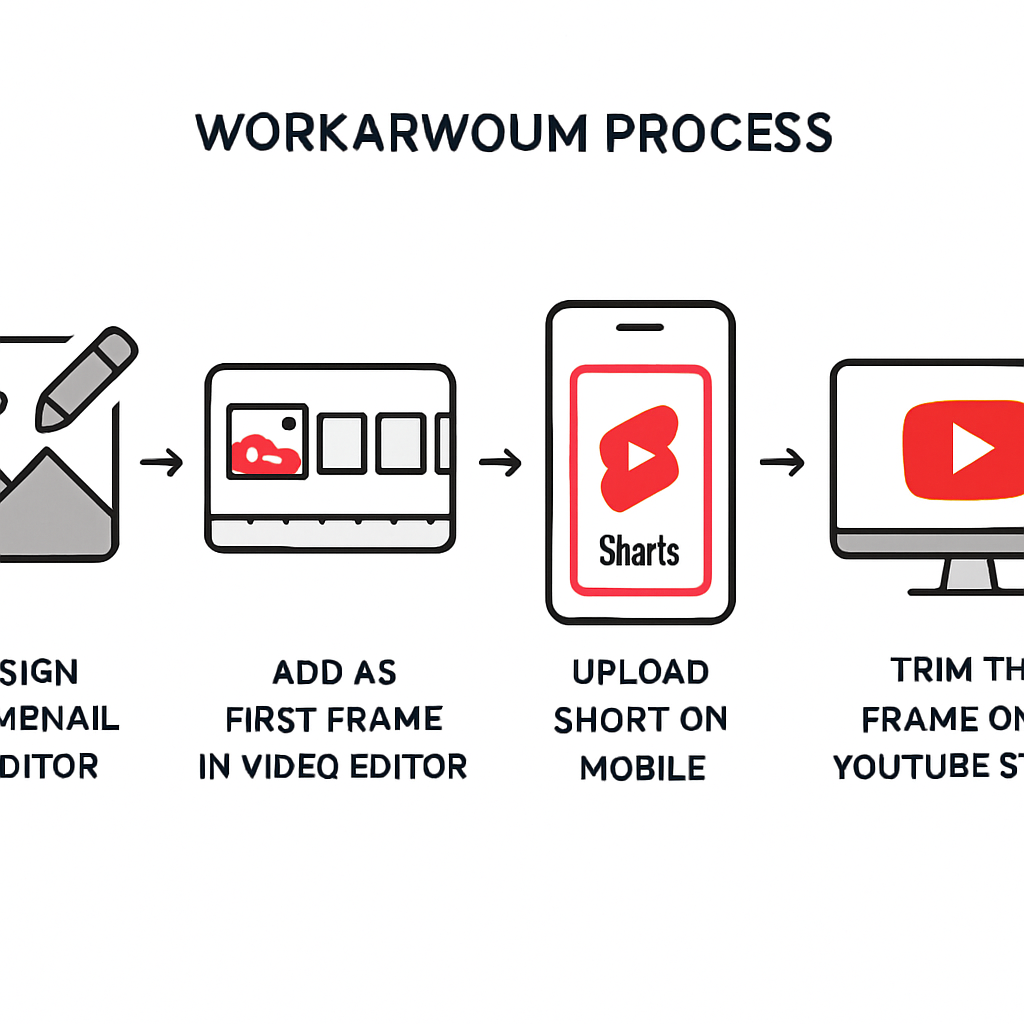
Workaround: If Custom Thumbnails Are Unavailable
If you don’t have the option to upload a custom thumbnail yet, you can influence the auto-generated thumbnail through a workaround:
- Edit the Short and go to the thumbnail selection screen.
- YouTube generates several auto-frames from the video.
- Choose the frame that works best as a thumbnail.
- This isn’t a custom image, but it’s better than YouTube’s default frame choice.
Additionally: if your Shorts are displayed prominently in search results, ensure the first frame of your video is visually strong — it may be used as the default thumbnail before you can set a custom one.
Common Issues When Adding Thumbnails to Shorts
“Upload thumbnail” button is grayed out or missing:
- Your account may need phone verification. Go to YouTube Studio > Settings > Channel > Advanced Settings.
- Custom thumbnails may be restricted on certain account types — see the custom thumbnail eligibility rules in YouTube Help.
Thumbnail shows in Studio but not on YouTube:
- Allow up to 24 hours for full propagation.
- Clear your browser cache or check in an incognito window.
Thumbnail changes back after saving:
- This is a known intermittent bug. Try saving again, or close and reopen Studio.
- Check if your image meets the file size and format requirements.
For more Shorts thumbnail troubleshooting, see Why Can’t I Change My YouTube Shorts Thumbnail.
Best Practices for Shorts Custom Thumbnails
- Design in 9:16: Create your thumbnail at 1080×1920 for best appearance in the Shorts feed.
- Keep text minimal: Shorts viewers scroll quickly — 2-3 words maximum.
- Use high-contrast visuals: The Shorts feed is visually dense; your thumbnail needs to stand out immediately.
- Avoid bottom and top 15%: UI overlays from YouTube’s Shorts player will cover these areas.
- Test: After uploading, view your Short in the Shorts feed on a phone to verify it looks right.
Conclusion
Adding a custom thumbnail to YouTube Shorts in 2026 is possible and straightforward using YouTube Studio on desktop. The key steps: go to Studio > Content > edit your Short > Upload thumbnail. Keep your image at 1080×1920 for Shorts-feed optimization or 1280×720 for universal compatibility.
For related Shorts content, see How to Save YouTube Shorts Thumbnails in Full Quality to understand how to download Shorts thumbnails from other creators for reference.