
Downloading a YouTube thumbnail on iPhone is not as obvious as on desktop, but it takes less than a minute once you know how. Unlike a Mac where you can right-click and save any image, iOS requires a slightly different approach. This guide covers the fastest method using Safari and Chrome on iPhone in 2026 — no app installation required.
Key Takeaways
- Use a browser-based thumbnail downloader on iPhone — no app needed
- The process works on Safari, Chrome for iOS, and any other iOS browser
- You can save thumbnails directly to your Photos app using the iOS share sheet
- The YouTube thumbnail iphone process works the same for iPads and iPod Touch
- Get thumbnail on safari takes about 30 seconds end to end
Why You Can’t Just Long-Press on YouTube
When you’re browsing YouTube on iPhone, long-pressing on a video thumbnail doesn’t give you a “Save Image” option. YouTube prevents this — what you get instead is a context menu with options like “Add to queue” or “Share.” The thumbnail image itself is inaccessible through this route, and YouTube’s own thumbnail policy treats it as creator-controlled artwork.
The solution is to use a dedicated web tool that fetches the thumbnail for you and presents it as a plain downloadable image.
Method 1: Using Safari (Recommended)
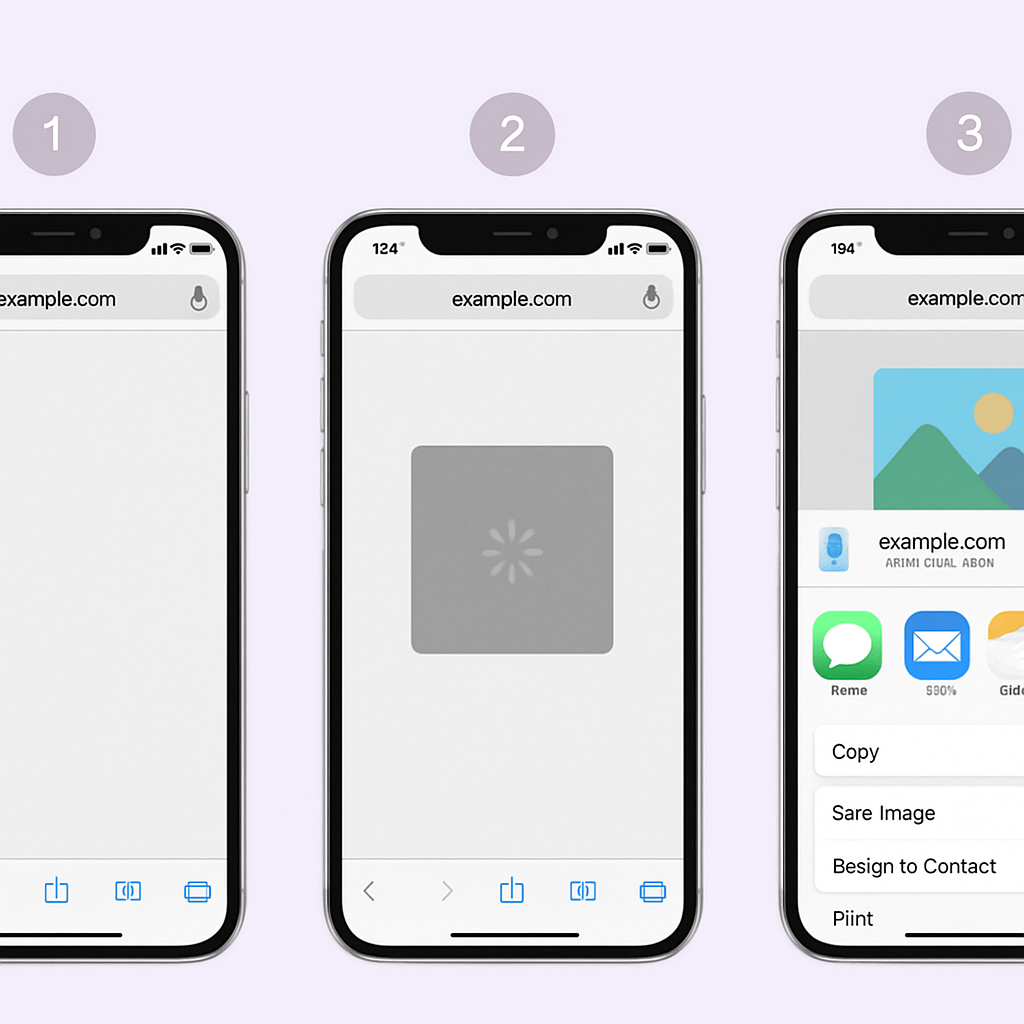
This is the easiest way to save a YouTube thumbnail on iPhone.
Steps:
- Open the YouTube app or YouTube in Safari and find the video.
- Tap the Share button (the box with an arrow) and copy the link.
- Open Safari and go to getyoutubethumbnaildownloader.com.
- Tap the input field and paste the YouTube URL.
- Tap Grab Thumbnails.
- All available resolutions appear — tap the resolution you want (the HD option is usually labeled 1280×720 or “Max Resolution”).
- The thumbnail opens in a new tab as a plain image.
- Long-press the image — a menu appears with Add to Photos.
- Tap Add to Photos to save it to your Camera Roll.
Method 2: Using Chrome on iPhone
If Chrome is your default browser, the process is almost identical:
- Copy the YouTube video URL.
- Open Chrome and go to getyoutubethumbnaildownloader.com.
- Paste the URL and tap Grab Thumbnails.
- Tap the resolution you want — the image opens in a new tab.
- Long-press the thumbnail image.
- Tap Save Image in the popup.
The image saves to your Photos library.
Method 3: Direct img.youtube.com URL in Safari
If you already know the video ID, you can go directly to the thumbnail:
- Find the video ID (the part after
v=in the YouTube URL). - In Safari’s address bar, type:
https://img.youtube.com/vi/{VIDEO_ID}/maxresdefault.jpg - Press Go.
- Long-press the image and tap Add to Photos.
This is the fastest method if you’re comfortable with YouTube video IDs. For more on this technique, see the YouTube Thumbnail URL Trick guide.
Troubleshooting on iPhone
The image doesn’t save to Photos: Check that Safari (or Chrome) has permission to access your Photos. Go to Settings > Safari > Photos and make sure it’s set to Allow. Apple documents the underlying Photos privacy controls if the toggle is missing.
Long-pressing doesn’t show “Add to Photos”: Some thumbnails load in a way that iOS doesn’t recognize as a direct image. Try opening the image in its own tab first (tap and hold the link, then choose “Open in New Tab”), then long-press the image in that tab.
The maxresdefault image is tiny (120×90 black square): This means the video doesn’t have a 1280×720 thumbnail available. Try the hqdefault version (480×360), which is available for every video.
The tool doesn’t load on iPhone: Make sure you have a working internet connection and that JavaScript is enabled in Safari (Settings > Safari > Advanced > JavaScript: On).
Save YouTube Thumbnail iOS: Quality Expectations
When you save a youtube thumbnail ios file to your Photos, what you get depends on which resolution you download:
- Max resolution (maxresdefault): 1280×720 pixels — best for design work, printing, and high-quality previews
- HQ default (hqdefault): 480×360 pixels — good for most uses
- Medium quality (mqdefault): 320×180 pixels — small preview
For any serious use, always go for maxresdefault first. The downloader tool shows you which resolutions are actually available for a given video.
Using Shortcuts App for Repeated Downloads
If you regularly need to save YouTube thumbnails on iPhone, iOS Shortcuts can automate it. Create a shortcut that:
- Takes a shared YouTube URL as input
- Extracts the video ID using text manipulation
- Constructs the
img.youtube.comURL - Downloads the image
This is an advanced workflow, but it’s built entirely with Apple’s built-in Shortcuts app — no coding required.
Conclusion
Downloading a YouTube thumbnail on iPhone takes under a minute using any iOS browser. The free online downloader is the most straightforward approach: copy the YouTube URL, paste it into the tool in Safari, and save the image to Photos. No apps to install, no accounts to create.
For the Android equivalent of this process, see How to Download YouTube Thumbnails on Android.