Your YouTube Shorts thumbnail not showing is a different problem from not being able to change it. You’ve either uploaded a custom thumbnail or expected the auto-generated one to appear, but it’s missing, blank, or showing the wrong image. This guide covers every known cause of the shorts thumbnail missing issue and the steps to fix it in 2026.
Key Takeaways
- shorts no thumbnail issues are often caused by processing delays — wait 1-4 hours after upload
- YouTube may not display your custom thumbnail in the Shorts feed immediately due to CDN caching
- The Shorts feed shows thumbnails differently than search results — check both
- youtube shorts preview image problems sometimes affect only certain devices or browsers
- Clearing the YouTube app cache resolves many display issues
Understanding Why Shorts Thumbnails Behave Differently
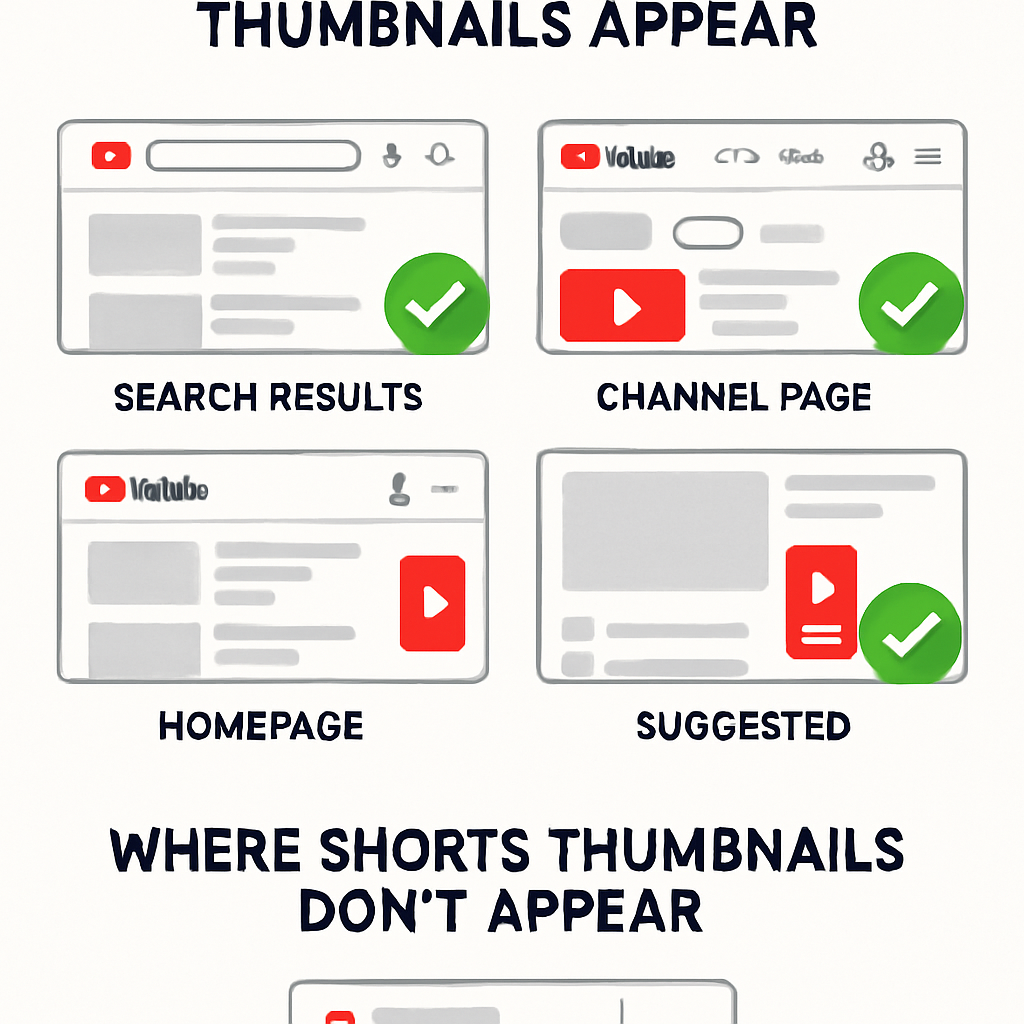
YouTube Shorts thumbnails have a more complex display system than regular video thumbnails:
- In the Shorts feed: Thumbnails are shown briefly before playback starts, and YouTube’s auto-play behavior means many viewers never see the thumbnail
- In search results: The thumbnail appears as a static card, much like a regular video
- On your channel page: Shorts may appear in a dedicated Shorts shelf with thumbnail display
A thumbnail issue in one context doesn’t always affect all contexts. The first step is identifying where exactly the thumbnail is missing.
Cause #1: Video Still Processing
Problem: After uploading a Short, YouTube needs to process the video and generate/apply thumbnails. This takes time — see YouTube’s video processing documentation for typical durations.
Symptoms: Thumbnail shows as a gray placeholder or blank, even after the Short is published.
Fix: Wait. Processing time varies:
- Fresh uploads: 30 minutes to 2 hours
- At peak hours: up to 4-6 hours
- Large files or slow connections: up to 24 hours
If your Short was uploaded recently, this is the most likely cause. Check again after a few hours.
Cause #2: CDN Caching Delay
Problem: YouTube’s content delivery network (CDN) caches thumbnail images globally. After you change a thumbnail, the old image may still show for viewers until the cache refreshes.
Symptoms: You see the new thumbnail in YouTube Studio, but the old (or no) thumbnail shows in the public feed.
Fix:
- Wait 24-48 hours for the global CDN cache to refresh
- Check in an incognito/private browser window to see what non-cached visitors see
- There’s no way to force a CDN cache invalidation from your end
Cause #3: YouTube App Cache on Your Device
Problem: Your device’s YouTube app has cached the old thumbnail (or a missing thumbnail state) and is still showing it.
Symptoms: You see no thumbnail or wrong thumbnail in the YouTube app, but the thumbnail appears correctly in a browser.
Fix: Android:
- Go to Settings > Apps > YouTube.
- Tap Storage.
- Tap Clear cache (not Clear data — that logs you out).
- Reopen YouTube.
iPhone:
- Delete and reinstall the YouTube app (iOS doesn’t have a standalone cache clear).
- Or simply wait — iOS app caches clear automatically on a cycle.
Cause #4: Thumbnail Was Rejected (Silent Failure)
Problem: YouTube’s content moderation sometimes silently rejects thumbnail images that violate community guidelines (nudity, graphic violence, misleading imagery) without showing a clear error message.
Symptoms: You uploaded a custom thumbnail and saved it, but the Shorts feed still shows a gray placeholder or an auto-generated frame.
Check: Go to YouTube Studio > Content > edit your Short. If the thumbnail section shows the generic YouTube icon or a blurry placeholder instead of your uploaded image, it was rejected.
Fix:
- Create a new thumbnail without any potentially violating content
- Ensure no suggestive imagery, shock content, or misleading before/after visuals
- Re-upload the new thumbnail
Cause #5: Wrong Video Type Classification
Problem: If YouTube mistakenly classified your Shorts-format video as a regular video (or vice versa), the thumbnail display behavior changes.
Symptoms: Your Short appears in the regular video feed rather than the Shorts shelf, or the thumbnail shows at an unexpected aspect ratio.
Check: In YouTube Studio, verify that your video shows a “Shorts” indicator. If it’s listed as a regular video but was intended as a Short, this can cause display inconsistencies.
Cause #6: Auto-Generated Thumbnail Is Black or Blank
Problem: YouTube’s auto-selected thumbnail frame is a black screen, a transition frame, or a particularly bad moment from the video.
Symptoms: The thumbnail shows, but it’s black or very low quality.
Fix:
- Upload a custom thumbnail (see How to Add a Custom Thumbnail to YouTube Shorts and YouTube’s official thumbnail guidance).
- Or select a better frame: In YouTube Studio, edit the Short and choose a different auto-generated frame option.
- Alternatively, re-upload with a better first frame that YouTube can use.
Cause #7: Shorts in Horizontal Layout Display Issues
Problem: In some YouTube interface versions, Shorts appearing in a horizontal scroll shelf may display differently than expected.
Fix: Check your thumbnail in multiple contexts:
- YouTube Shorts feed (vertical swipe interface)
- YouTube search results for your Short’s keywords
- Your channel page Shorts shelf
If the thumbnail shows correctly in some contexts but not others, it’s likely a display-specific rendering issue that resolves over time.
shorts thumbnail missing: Quick Diagnostic Checklist
Work through these in order:
- Is the Short still processing? (Wait 2-4 hours)
- Does the thumbnail appear in YouTube Studio? (Check the edit panel)
- Does it appear in a desktop browser (incognito)? (CDN cache check)
- Does it appear on a different device? (App cache check)
- Is there a content policy issue with the thumbnail? (Check for platform notifications)
- Has it been 24-48 hours since the change? (Global cache propagation)
Conclusion
A YouTube Shorts thumbnail not showing is almost always a timing issue (processing or CDN cache delay), a device cache issue, or a silently rejected thumbnail. Work through the checklist above in order. Most cases resolve within 24-48 hours without any action beyond waiting.
For related troubleshooting, see Why Can’t I Change My YouTube Shorts Thumbnail — which covers the complementary problem of not being able to change the thumbnail at all.