You changed your YouTube thumbnail in YouTube Studio and saved it — but the old thumbnail is still showing everywhere. This is one of the most common frustrating experiences for creators in 2026. The good news: thumbnail won’t update issues are almost always fixable. Here’s a systematic guide to diagnosing and solving the youtube thumbnail cache and thumbnail stuck youtube problem.
Key Takeaways
- If you saved the new thumbnail in Studio, the change is recorded — the problem is usually a cache display issue
- Always check incognito/private mode first — if the new thumbnail shows there, it’s a local cache issue
- YouTube’s global CDN can take 24-48 hours to fully propagate a thumbnail change
- Your device’s app cache and browser cache are separate from YouTube’s CDN cache
- If the thumbnail hasn’t updated after 48 hours in incognito, there may be a save issue in Studio
How to Diagnose the Problem
Before trying fixes, determine where exactly the thumbnail isn’t changing:
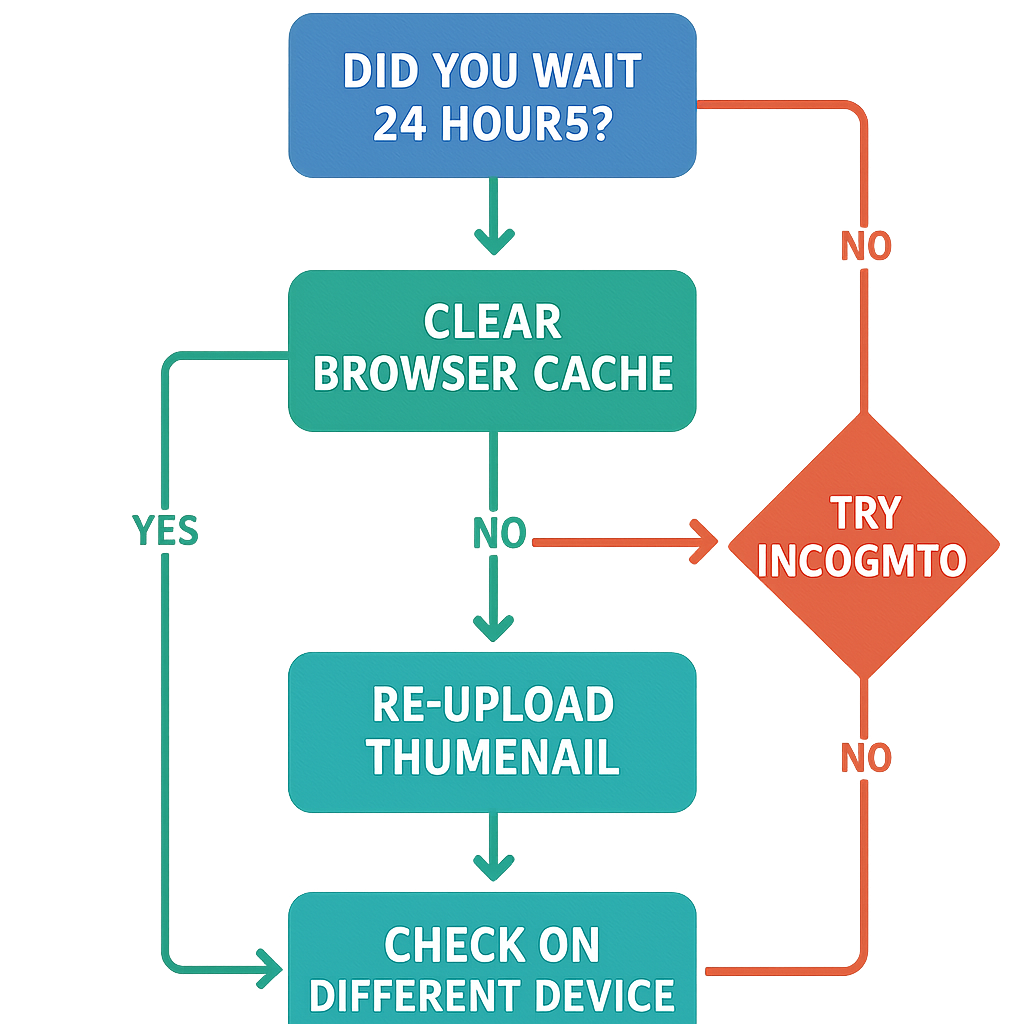
Step 1: Check YouTube Studio Go to studio.youtube.com > Content > click the video. Does the Thumbnail section show your new thumbnail?
- Yes: The change is saved. The display issue is a cache problem.
- No: The save didn’t work. Go back to the save process.
Step 2: Check in Incognito Open an incognito/private browsing window and navigate to your video page on YouTube.
- New thumbnail shows: Your local browser cache is the problem (easy fix).
- Old thumbnail still shows: The CDN hasn’t propagated yet, or there’s a deeper issue.
Step 3: Check on a Different Device Try a phone that hasn’t recently loaded your video, or ask someone else to check.
- New thumbnail shows: Device-specific cache issue.
- Old thumbnail still shows: CDN propagation is in progress, or there’s a Studio-side issue.
Fix 1: Clear Your Browser Cache
If the new thumbnail shows in incognito, your browser has cached the old one.
Chrome: (full instructions in Google’s clear cache help article)
- Press Ctrl+Shift+Delete (Windows/Linux) or Cmd+Shift+Delete (Mac).
- Set time range to “All time.”
- Check “Cached images and files.”
- Click “Clear data.”
- Reload the YouTube page.
Firefox:
- Settings > Privacy & Security > Cookies and Site Data > Clear Data.
- Check “Cached Web Content.”
- Click Clear.
Safari:
- Develop > Empty Caches.
- Or: Settings > Advanced > enable “Show Develop menu in menu bar,” then use the Develop menu.
Fix 2: Clear YouTube App Cache (Mobile)
Android:
- Settings > Apps > YouTube.
- Storage > Clear Cache.
- Reopen YouTube.
iPhone:
- iOS doesn’t have a standalone cache clear for individual apps.
- The most reliable option: delete and reinstall the YouTube app.
- Or wait — iOS caches clear automatically over time.
Fix 3: Wait for CDN Propagation
YouTube uses a global CDN (Content Delivery Network) with servers worldwide. When you change a thumbnail, the new image propagates gradually across all servers. This process:
- Usually completes within a few hours for most viewers
- Can take up to 24-48 hours for full global propagation
- Is completely outside your control — no way to force it
If you changed the thumbnail less than 48 hours ago and it’s showing correctly in incognito, just wait.
Fix 4: Re-Upload the Thumbnail in Studio
If the thumbnail shows the correct new version in YouTube Studio but not on YouTube itself, try forcing the update:
- Go to YouTube Studio > Content > edit the video.
- In the Thumbnail section, delete/remove the current thumbnail.
- Re-upload the new thumbnail file.
- Click Save.
This triggers a fresh CDN push for the thumbnail.
Fix 5: Check if the Save Actually Worked
The most common “my thumbnail isn’t changing” scenario is actually a failure to save in Studio:
- You upload the new thumbnail in Studio.
- The preview updates in Studio’s thumbnail section.
- You navigate away without clicking Save in the top right.
- Your session expires or you close the tab.
- The change was never saved.
Always confirm you see “Saved” or “Changes saved” before leaving YouTube Studio.
Fix 6: Check the File Format and Size
YouTube silently rejects thumbnails that violate its official requirements. If your upload appeared to work but the change didn’t stick:
- Verify file is under 2MB
- Verify format is JPG, PNG, GIF, BMP, or WebP
- Check that the image isn’t corrupted (try opening it locally)
- Try converting to JPG if you uploaded a different format
thumbnail stuck youtube: The Diagnostic Checklist
- Does YouTube Studio show the new thumbnail in the Thumbnail section? (If no, re-save)
- Does the new thumbnail appear in incognito? (If yes, clear local cache)
- Has it been less than 48 hours? (If yes, wait for CDN)
- Did you click Save before leaving Studio? (If unsure, re-upload and save again)
- Is the thumbnail under 2MB in a supported format? (Check file)
- Is the video thumbnail listed as “Custom” not “Auto” in Studio? (Confirm custom thumbnail is set)
Preventing the Problem in the Future
To avoid thumbnail update issues:
- Always click Save explicitly in YouTube Studio — don’t just close the tab.
- Verify the change in incognito immediately after saving.
- Bookmark the video URL and check it after 2-4 hours to confirm the CDN has updated.
Conclusion
A YouTube thumbnail not changing is almost never a permanent problem. In 2026, 90% of cases are resolved by clearing your browser cache, waiting for CDN propagation, or re-saving the thumbnail in Studio. Work through the diagnostic checklist above in order — most people find their answer in the first two steps.
For the complementary issue of thumbnails looking wrong after they do change, see Why Is My YouTube Thumbnail Blurry. For guidance on the change process itself, see How to Change Your YouTube Thumbnail After Uploading.