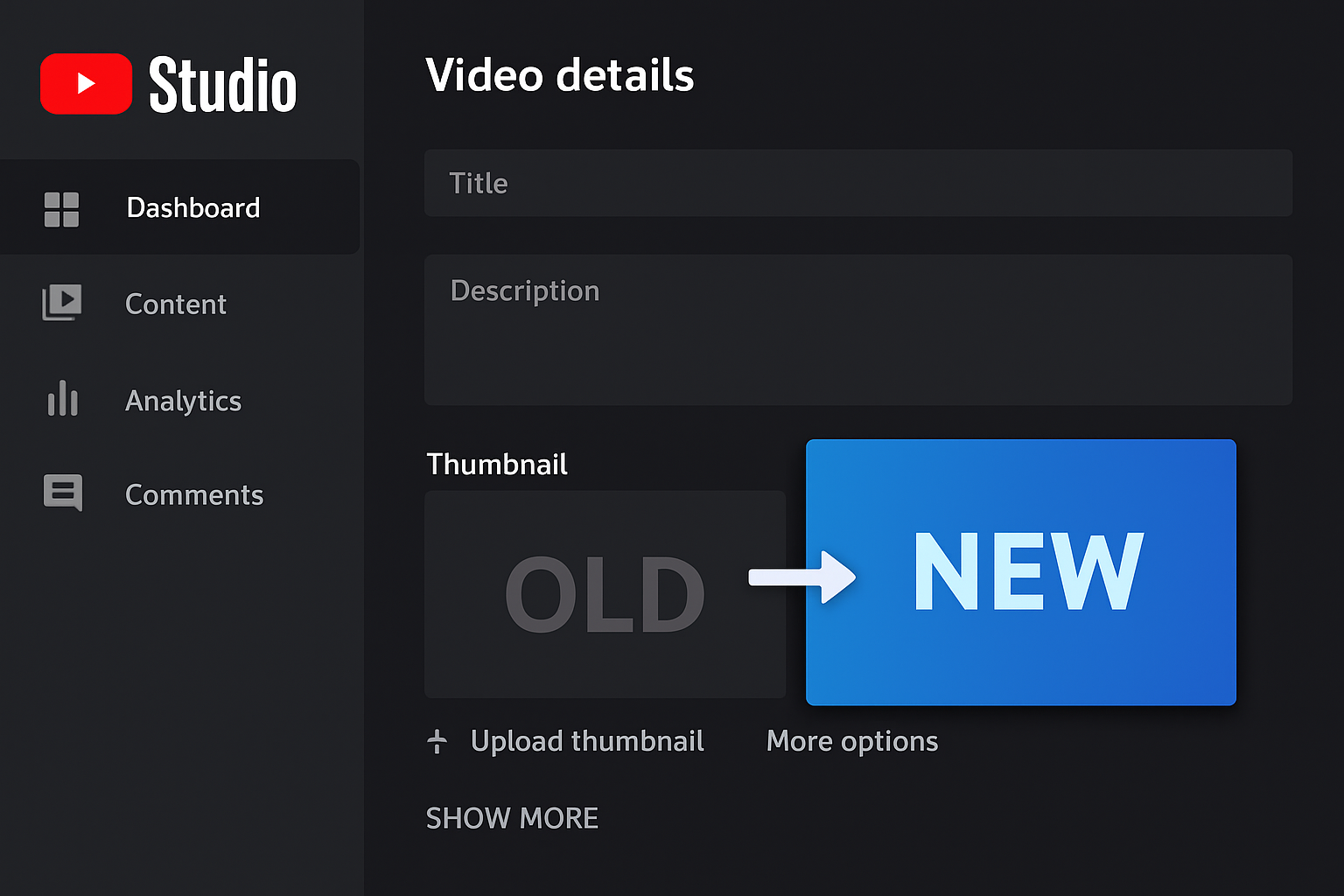
You can change youtube thumbnail after upload at any time — YouTube doesn’t lock thumbnails after a video goes live. Whether your original thumbnail underperformed, you made a design error, or you want to test a new version, the process takes under two minutes in YouTube Studio. Here’s exactly how to replace youtube thumbnail in 2026.
Key Takeaways
- You can update thumbnail youtube studio as many times as you want on any video
- Custom thumbnail upload requires a phone-verified YouTube account
- After changing, allow up to 24 hours for the new thumbnail to appear everywhere (CDN propagation)
- The change is immediate in YouTube Studio but takes time to appear globally in the feed
- Changing a thumbnail does not affect views, likes, comments, or SEO rankings
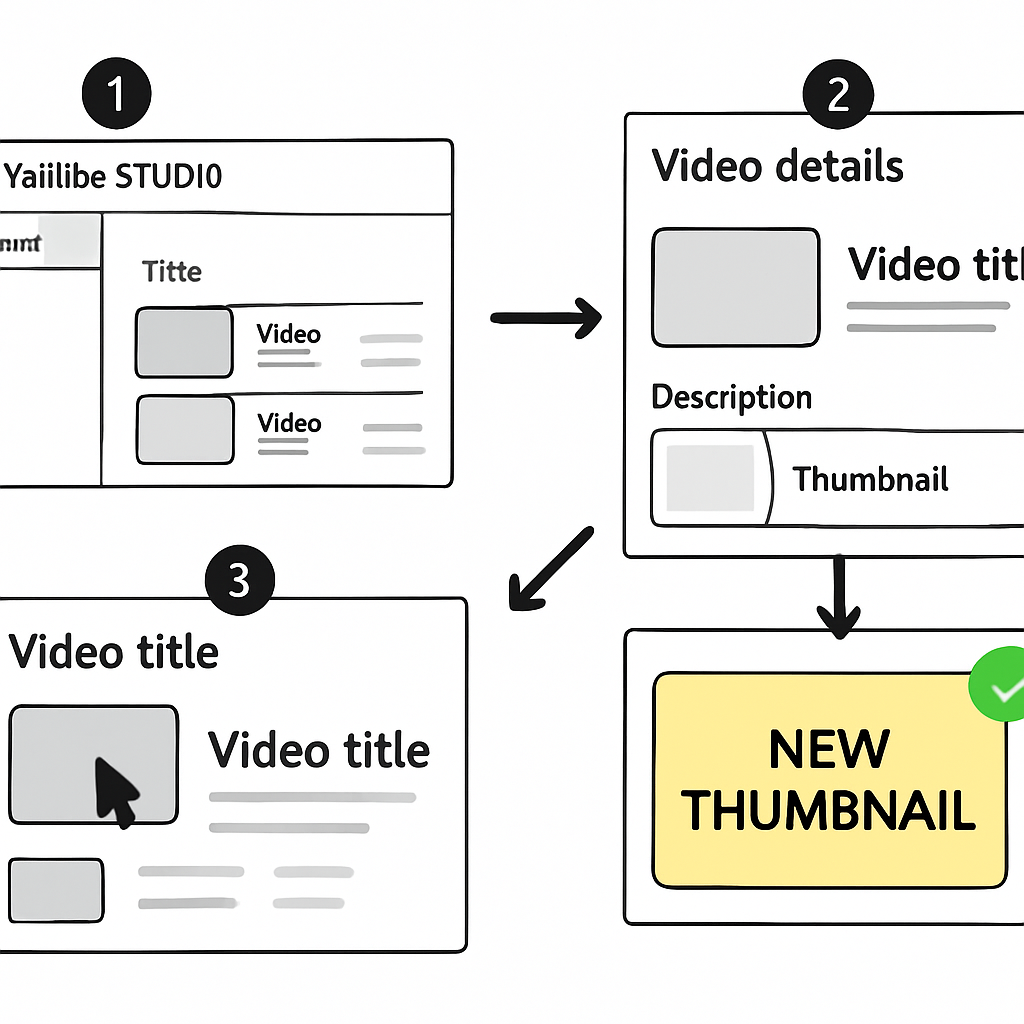
Step-by-Step: Change a YouTube Thumbnail in YouTube Studio
On desktop (recommended):
- Go to studio.youtube.com.
- Sign in to your YouTube account.
- Click Content in the left sidebar.
- Find the video you want to update in the list.
- Click the pencil/edit icon on the video row, or click on the video title to open the Details panel.
- In the Details tab, look for the Thumbnail section at the top of the panel.
- Click Upload thumbnail.
- Select your new thumbnail image file (JPG, PNG, or WebP, under 2MB — see YouTube’s official thumbnail specs).
- Your new thumbnail appears in the Thumbnail section.
- Click Save in the top right corner.
The change is saved immediately. Your new thumbnail will begin appearing on YouTube within minutes for most viewers, with full global CDN propagation taking up to 24 hours.
Step-by-Step: Change Thumbnail Using YouTube Mobile App
Using the YouTube Studio app (not the regular YouTube app):
- Download and open the YouTube Studio app.
- Tap the pencil icon or go to Videos from the bottom navigation.
- Find the video and tap on it.
- Tap the pencil icon in the upper right.
- In the Details screen, tap on the current thumbnail or the Thumbnail field.
- Choose Upload from device or pick from auto-generated frames.
- Select your image.
- Tap the checkmark or Save.
Using the regular YouTube app: The regular YouTube app has limited video editing capabilities. You may be able to edit thumbnails from the app in some versions, but YouTube Studio app is more reliable for this.
What Happens After You Change a Thumbnail
Immediate: The new thumbnail appears in YouTube Studio.
Within 5-15 minutes: The new thumbnail begins showing for some viewers — those accessing YouTube fresh from search engines or in new sessions.
Within 24-48 hours: Full global CDN cache refresh — all viewers see the new thumbnail regardless of their device or location.
For returning visitors: Their devices may have cached the old thumbnail for up to 24 hours after you make the change. This is normal.
Will Changing a Thumbnail Affect My Video’s Performance?
No, changing a thumbnail does not:
- Reset view count
- Remove likes, dislikes, or comments
- Affect your video’s SEO rankings
- Reset the video in YouTube’s recommendation algorithm
What it does affect is the click-through rate (CTR) going forward. A better thumbnail leads to more clicks, which feeds positive signals to YouTube’s algorithm. Changing a thumbnail on a performing video is a safe and low-risk optimization.
Tip: If you have YouTube Studio’s Test & Compare feature, upload your new thumbnail as a test variant instead of replacing the old one immediately. This lets you A/B test the performance before fully committing to the change.
How Many Times Can You Change a YouTube Thumbnail?
There is no documented limit on how many times you can update thumbnail youtube studio for a single video. Creators regularly change thumbnails multiple times:
- Testing different designs
- Updating for seasonal relevance (e.g., adding “2026” to older content)
- Replacing thumbnails on older videos that aren’t performing
The only restriction is YouTube’s 2MB file size limit and the requirement that custom thumbnails meet YouTube’s thumbnail policy (no misleading, sexual, or violent imagery).
Troubleshooting: Thumbnail Not Changing After Upload
If your thumbnail update doesn’t appear after 15-30 minutes:
- Check if you clicked Save: The most common mistake. Go back to Studio and verify the new thumbnail is showing.
- Clear your browser cache: Ctrl+Shift+Delete in Chrome, or check in an incognito window.
- Wait longer: Up to 24-48 hours for full propagation.
- File size issue: Check that your new thumbnail is under 2MB and in a supported format.
If the thumbnail still shows the old version after 48 hours everywhere (including incognito and mobile), re-upload it in YouTube Studio.
For deeper troubleshooting, see YouTube Thumbnail Not Changing: How to Fix Cache and Update Issues.
Changing Thumbnails on YouTube Shorts
Changing a Shorts thumbnail follows the same general process, but the interface may behave differently. YouTube Studio on desktop is the most reliable approach. For Shorts-specific guidance, see How to Add a Custom Thumbnail to YouTube Shorts.
Conclusion
Changing a YouTube thumbnail after upload is simple and can be done as many times as needed via YouTube Studio. Go to Content > edit the video > Thumbnail section > Upload thumbnail > Save. The change propagates within minutes and doesn’t affect any existing video performance metrics.
For context on what makes a high-performing thumbnail worth switching to, see How to Make YouTube Thumbnails That Get Clicks and the YouTube Thumbnail Size Guide to ensure your replacement thumbnail meets all specs.